Gkeep.nvim
Neovim integration for Google Keep, built using gkeepapi
Requirements
- Neovim 0.5
- Python 3.6+
- A patched font (optional. Used for icons)
Table of Contents
Installation
gkeep supports all the usual plugin managers
Packer
require('packer').startup(function()
    use {'stevearc/gkeep.nvim', run = ':UpdateRemotePlugins'}
end)
Paq
require "paq" {
    {'stevearc/gkeep.nvim', run = vim.fn['remote#host#UpdateRemotePlugins']};
}
vim-plug
Plug 'stevearc/gkeep.nvim', { 'do': ':UpdateRemotePlugins' }
dein
call dein#add('stevearc/gkeep.nvim')
Pathogen
git clone --depth=1 https://github.com/stevearc/gkeep.nvim.git ~/.vim/bundle/
Neovim native package
git clone --depth=1 https://github.com/stevearc/gkeep.nvim.git \
  "${XDG_DATA_HOME:-$HOME/.local/share}"/nvim/site/pack/gkeep/start/gkeep.nvim
Post-install, you will need to run :UpdateRemotePlugins if your installer hasn't done so automatically.
gkeep.nvim also depends on the gkeepapi and keyring python libraries. It will attempt to install those automatically, but if it fails you will need to find the python3 executable that neovim is using (if you're not sure, run :checkhealth provider) and run python3 -m pip install gkeepapi keyring. If you are NOT using python 3.8+, you will also need to pip install typing-extensions.
Run :checkhealth gkeep to confirm everything is set up properly
Setup
No configuration is necessary to get started, simply run :GkeepLogin. It will prompt you for an email and password (if you use 2-factor, you will need to provide an app password).
The API master token is stored using keyring so you don't have to enter your password again. To remove the stored credentials from your system, run :GkeepLogout.
Commands
| Command | Args | Description |
|---|---|---|
:GkeepLogin |
[{email}] |
Login to Google Keep |
:GkeepLogout |
Log out and clear stored credentials | |
:GkeepOpen |
[right/left] |
Open the gkeep windows |
:GkeepEnter |
[menu/list], [right/left] |
Open and enter the gkeep windows |
:GkeepClose |
Close the gkeep windows | |
:GkeepToggle |
[right/left] |
Open or close the gkeep windows |
:GkeepNew |
[note/list/neorg], [title] |
Create a new note |
:GkeepSync |
Sync changes with the server | |
:GkeepRefresh |
Force fetch latest notes from server | |
:GkeepGoto |
Open the note link under the cursor (see links) | |
:GkeepBrowse |
Open the note in your web browser | |
:GkeepYank |
Copy a document link to the current note (see links) | |
:GkeepCheck |
Toggle the checkbox of the current item (see list notes) |
Additionally, there is the function GkeepStatus() which returns the current status message (usually about syncing notes). This can be used in your statusline if desired.
Configuration
Set the following global variables to configure gkeep.
| Variable | Type | Default | Description |
|---|---|---|---|
g:gkeep_sync_dir |
string | null |
The directory to sync notes into (see file sync below) |
g:gkeep_sync_archived |
bool | false |
If true, will sync archived notes as well |
g:gkeep_nerd_font |
bool | true |
When true, will use icons from your patched font |
g:gkeep_icons |
dict | See config.py | Override the icons used |
g:gkeep_width |
int | 32 | Set the width of the sidebar |
g:gkeep_log_levels |
dict | {'gkeep': 'warning', 'gkeepapi': 'warning'} |
Python log levels. See logging levels for a list of levels |
Note that these variables must be set before gkeep is loaded in order for them to take effect.
Features
Menu
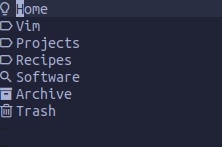
The Menu is the top window that displays your labels and searches. Use ? to view all the keymaps available. The main features include:
- Search your notes
- Save/edit/delete searches
- Create/edit/delete labels
Note list
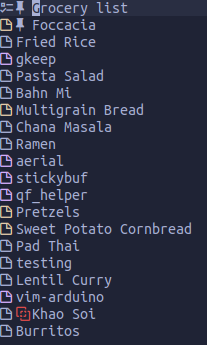
The Note list is the bottom window that displays the notes that match the currently-selected menu item (label, search, etc). Use ? to view all the keymaps available. The main features include:
- Open notes
- Archive or delete notes
- Create new notes
- Change the note type or color
- Change the sort order
Note editing
Notes will have the title, id, and labels at the top like so:
# My note
id: 1626733972853.1206798729
labels: First label, Another label
To change the note title, simply edit the file and :w. The same goes for labels. If the note doesn't have any labels yet, manually add the labels: line and they will be picked up when you save. Do not change the id: line.
There is an omnicomplete function (
) that will complete the labels for you
Note: if you are using file sync, renaming files will not rename the note. Changing the note title will rename the file.
Lists
Google Keep has a special type of note to represent lists, and gkeep customizes the editing environment heavily to enforce the proper format. You may wish to bind :GkeepCheck to a convenient keymap.
list.mp4
Links
You can embed links to other notes within a note. The format for a link is [visible text](note_id). You can quickly get a link to a note using the :GkeepYank command. To jump to a link under your cursor, use the :GkeepGoto command (bound to gf by default).
You can also use the ephemeral url format for links if you like (e.g. gkeep://{id}/{visible_text})
link.mp4
Search
Searching notes is done from the Menu. Pressing / in the menu will pop open the search prompt. As you type, the Note list should live-update to show the search results.
search.mp4
The search is case-insensitive, and will look for matches in the note title and text. Matching is exact, not fuzzy.
Flags
There is a special syntax to let you filter notes by type. Notes can be [p]inned, [a]rchived, or [t]rashed. You can use the following flags to specify the desired behavior:
-: Exclude notes of the specified type+: Include notes of the specified type=: Only show notes of the specified type
╭─────────────╮
│🔍 -p        │  // Exclude pinned notes from the search
╰─────────────╯
╭─────────────╮
│🔍 =a        │  // Only search archived notes
╰─────────────╯
╭─────────────╮
│🔍 +at       │  // Search all notes, including archived and trashed
╰─────────────╯
The default query functions like -at, to filter out archived and trashed notes.
Flags can be added to any part of the query. Gkeep will search for any text that is not the flag.
╭─────────────╮
│🔍 +a vim +t │  // Search all notes (including archived and trashed) for 'vim'
╰─────────────╯
Labels and colors
You can search for notes with a specific label or color by using label: and color:
. This can be abbreviated as l: and c:
. To specify multiple labels or colors, separate them with a comma.
╭────────────────────────╮
│🔍 l:software,journal   │  // Search notes with either label
╰────────────────────────╯
╭────────────────────────╮
│🔍 c:red,blue           │  // Search red and blue notes
╰────────────────────────╯
If your label has whitespace or special characters, you can quote it. Note that you cannot comma-separate quoted labels, so to search multiple you will need to provide label: multiple times.
╭──────────────────────────────────────────╮
│🔍 l:"journal entries" l:"project ideas"  │
╰──────────────────────────────────────────╯
You do not need to specify the entire label in a query, only a unique prefix. For example, if you have the labels software, vim, and journal, you could search for the software label with l:s, since no other labels start with "s".
Examples
Some more query examples:
vim l:software +a- Search forvimamong notes with thesoftwarelabel, including archived notescode outline l:software,vim c:red- Search red notes with either asoftwareorvimlabel that contain the text "code outline"
Ephemeral notes
The default operation for gkeep is to not save your files to disk. The note data will be cached locally in a json file (under neovim's cache directory), but no note files will exist directly. Notes are accessed by using a buffer name that looks like gkeep://{id}/{title}.keep. These buffers can be edited and saved like a normal file, and they will sync those changes to Google Keep.
File sync
If you set let g:gkeep_sync_dir = '~/notes' gkeep will write all your notes to that directory and attempt to keep them in sync. It will also scan that directory for new files and create notes in Google Keep for them. Note files must use the .keep extension to be detected (or .norg if using Neorg).
Merge conflicts
If the Google Keep servers and your local files disagree about the content of a note, the file on your computer will be renamed to
and the original file will be updated to the server latest. When a .local file is present, the note will appear with a red "merge" icon in the list:
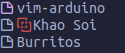
If you open the note, it will open in a vimdiff split. Resolve the merge conflict and then delete the .local file to get back to a good state.
Changing files outside of vim
You can make edits to the synced note files outside of vim, and the changes will be picked up and synced the next time you open vim (and start gkeep). To protect you from data loss, when gkeep detects changes that are made from outside of vim, a backup of the note will be made in Google Keep before uploading those changes. Backups will appear in your Trash (and thus will be deleted after 7 days), and will have [Backup] in the title.
Third-party integrations
Telescope
If you have telescope installed, you can use it to search and select your notes. The search funtionality here uses the same query syntax as the search function.
Load the extension with:
require('telescope').load_extension('gkeep')
You can then search your notes with :Telescope gkeep
Neorg
If you have neorg installed, gkeep will automatically enable support for it (check that it's working with :checkhealth gkeep). You will then be able to use the note list to create Neorg notes or change existing notes to be Neorg notes. Gkeep will interact minimally with the @document.meta tag, but otherwise it will simply function as a storage backend for your notes.
@document.meta
gkeep cares about three entries in the document meta:
title:This will be used as the title of the note.categories:Gkeep will look for labels in here. Note that the neorg spec specifies that categories are space-separated. Gkeep will handle it if your labels have spaces in them. You can also add categories here that are not Google Keep labels and gkeep will ignore them.gkeep:Gkeep stores the ID of the note here. Do not remove it or you will end up creating duplicate notes.
Changing the title: and categories: will edit the note title and labels, just like for a normal note.
Highlight
The following highlight groups can be overridden
| Group | Description |
|---|---|
GkeepStatus |
The status string in the upper right of the menu |
GKeepRed |
The color of Red note icons |
GKeepOrange |
The color of Orange note icons |
GKeepYellow |
The color of Yellow note icons |
GKeepGreen |
The color of Green note icons |
GKeepTeal |
The color of Teal note icons |
GKeepBlue |
The color of Blue note icons |
GKeepDarkBlue |
The color of DarkBlue note icons |
GKeepPurple |
The color of Purple note icons |
GKeepPink |
The color of Pink note icons |
GKeepBrown |
The color of Brown note icons |
GKeepGray |
The color of Gray note icons |
FAQ
Q: Why Google Keep?
It has a good mobile UI. I like editing notes in vim on my desktop, but I also want to be able to access them on my phone.
Q: Why not use the official Google Keep API?
Google has recently released an official API for Google Keep. Since gkeep.nvim has roughly two different modes of operation, let's evaluate it for each:
- With notes synced as files: The API has no concept of 'versions' or delta updates like gkeepapi. This means that in order to keep the files in sync, we would have to check every single one of them against the cloud version on startup. This is prohibitively time consuming and wasteful of CPU and bandwidth.
- With ephemeral notes, no files: On the surface the API should be great for this, but it is lacking key features that we want. The biggest missing pieces are search and labels, without which we would have no way to navigate notes except scrolling down a list.
If the API gets updated in the future to better support one or both of these workflows, I'll consider migrating to it.
Q: What Google Keep features are not supported?
These are Google Keep features that are currently unsupported by gkeep.
- attachments
- collaborators
- reminders

 1 Feb 09, 2022
 7 Aug 19, 2022
 64 Dec 28, 2022
 1 Mar 27, 2022
 10 Dec 24, 2022
 1 Feb 02, 2022
 2 Jan 07, 2022
 1 Feb 14, 2022
 41 Jul 27, 2022
 31 Dec 20, 2022
 32 Jun 23, 2022
 15 Jan 10, 2022
 1 Oct 02, 2022
 10 Jun 30, 2022
 108 Dec 26, 2022
 4 Nov 17, 2022
 0 Dec 13, 2021
 1 Oct 20, 2021
 2 Oct 09, 2022